
Tracking Scripts
Precondition
Make sure you are logged in with an account that has access to the Settings menu.
What are tracking scripts?
Tracking scripts (like the Facebook Pixel or Google Analytics) collect data about your visitors. Since this data is transmitted to third parties, the data protection regulation requires visitors to actively consent, before any such script is loaded. That's why a cookie banner automatically appears on any page where at least one tracking script is active, asking the visitor to accept or decline.
Only use this on campaign pages. Our privacy policy limits the use of tracking technologies like the Facebook Pixel to pages related to our political campaigns:
This means you should only enable tracking scripts on pages or posts that belong to one of your campaigns, not site-wide.
Configuring tracking scripts globally
In the backend go to Settings > Tracking Scripts.
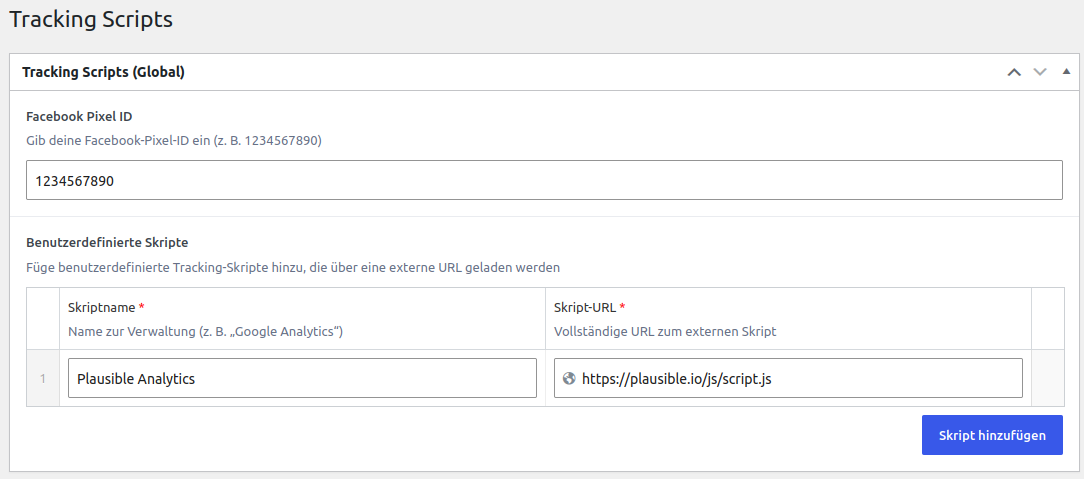
Facebook Pixel ID
Enter your Facebook Pixel ID here (for example 1234567890). Once set, a
new switch to enable the Facebook Pixel becomes available on every
page and post.
Custom Scripts
Use this repeater to add any other external tracking script, e.g. Google Analytics. For every script provide:
- Script Name: only used internally, so you recognize it later on.
- Script URL: the full URL to the external script file.
For every custom script you add here, a matching switch (named after your Script Name) becomes available on every page and post.
Cookie Banner text
If your website has more than one language, go to Settings > Cookie Banner (XX) (one entry per language) to adjust the banner text and the link to your privacy policy. If left empty, a default German text is shown.
Enabling scripts on a page or post
Configuring a script under Settings > Tracking Scripts does not load it anywhere yet. You have to explicitly enable it on every page or post where it should run.
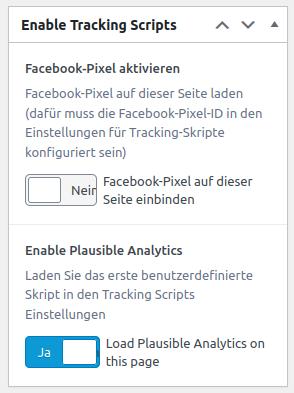
Open the page or post you want to track and look for the Enable Tracking Scripts box in the right column. Toggle on the scripts you want to load on this page.
Remember: only do this on pages belonging to a campaign, as required by our privacy policy.
A switch only appears once the corresponding script is configured globally. For example the Enable Facebook Pixel switch stays hidden until you entered a Facebook Pixel ID.
How it works for visitors
As soon as a page has at least one enabled tracking script, the cookie banner is shown to first-time visitors:
- If they click Accept, the enabled scripts (Facebook Pixel and/or custom scripts) are loaded and their consent is remembered for future visits.
- If they click Decline, no script is loaded and the visitor is asked again on their next visit.
Pitfall: If you enable a script on a page, but don't see the banner or the script running, double-check that the script itself is still configured globally. A switch without a matching global configuration has no effect.
Pitfall: Once a visitor accepts or declines, their choice is remembered in the browser, so the banner won't show again on that device. If you're testing and want to see the banner again, clear your browser's cache (or use a private/incognito window).